
First-party methodology
Card Centering Guide: How to Measure and Read Ratios
Learn what card centering means, how visible border measurements become left/right and top/bottom percentages, what perspective correction changes, and when a photo should be rejected.
Published by super_pjj · Last implementation review: August 25, 2026
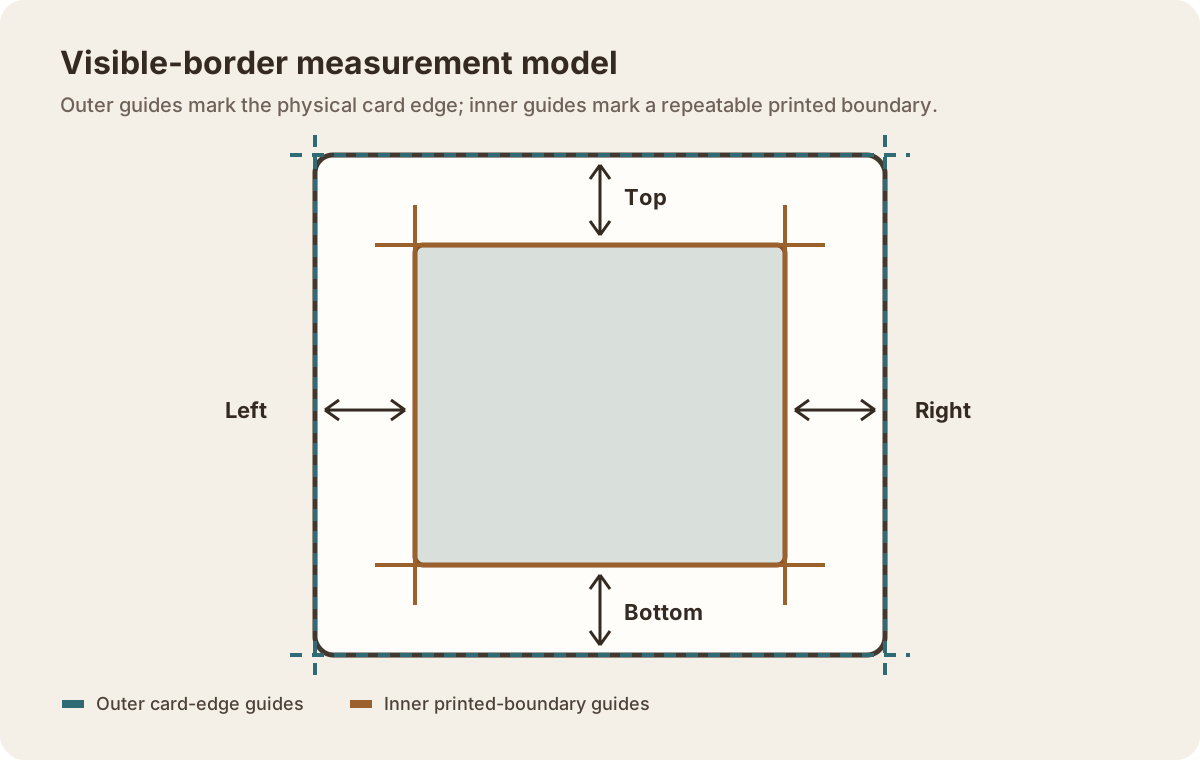
Measurement model
Outer guides, inner guides, and visible border thickness
Centering is the visible balance between a card's printed design and opposite physical edges. The tool measures that balance as left versus right and top versus bottom; it does not automatically identify the card or claim to know where the manufacturer intended the cut.
Outer guides
The left, right, top, and bottom outer guides are placed on the visible physical edges of the card. Sleeve edges, shadows, and the edge of a holder are not valid substitutes.
Inner guides
The four inner guides are placed on a repeatable printed boundary inside the card: normally the point where the border ends and the central design begins.
Border thickness is not the same thing as proven center-to-cut symmetry. On a card with a regular, symmetric printed frame, visible border balance is a useful proxy. Borderless, intentionally asymmetric, misregistered, damaged, or irregular designs may not provide a defensible inner boundary.
Guide positions are stored in image coordinates after crop or perspective setup. Zoom, pan, the loupe, exposure, Border Assist, and Low-Res change how the workspace is viewed; they do not replace the saved guide coordinates.
Coordinate math
How four border widths become two percentages
The implementation subtracts each outer coordinate from its matching inner coordinate, then normalizes opposite borders as a pair.
Border widths
- Left = left inner X − left outer X
- Right = right outer X − right inner X
- Top = top inner Y − top outer Y
- Bottom = bottom outer Y − bottom inner Y
Normalized ratios
- Left % = 100 × Left ÷ (Left + Right)
- Right % = 100 − Left %
- Top % = 100 × Top ÷ (Top + Bottom)
- Bottom % = 100 − Top %
For example, visible left and right borders of 112 and 96 image pixels become 53.8 / 46.2. The absolute pixel scale cancels because each axis is normalized against its own opposite-border total. A larger source image can still help alignment because it preserves more edge detail.
50/50 centering
Borders of 2 units and 2 units total 4. Each side is 2 ÷ 4, or 50%. The visible borders are equal on that axis.
55/45 centering
Borders of 11 units and 9 units total 20. The pair becomes 55% and 45%, showing a modest difference between opposite sides.
60/40 centering
Borders of 3 units and 2 units total 5. The pair becomes 60% and 40%, so the wider border is one-and-a-half times the narrower border.
70/30 centering
Borders of 7 units and 3 units total 10. The pair becomes 70% and 30%, making the imbalance visually pronounced.
Keep direction and grade outcome separate. The app reports the measured sides in order, so 60/40 left-to-right is not the same direction as 40/60. These examples explain border proportions; none guarantees a particular grade.
If you already have four border measurements from a ruler, caliper, scan, or image editor, enter them in the Manual Centering Calculator instead of rebuilding the measurements with photo guides.
When Uneven Inner Tilt activates multi-point sampling, the workspace calculates the border at three positions along that edge. The displayed range preserves the variation, and centering-grade references use the least favorable sampled position rather than hiding it in the average.
Image geometry
Crop-only mode and four-corner perspective correction
These paths create different measurement workspaces and should not be described as interchangeable.
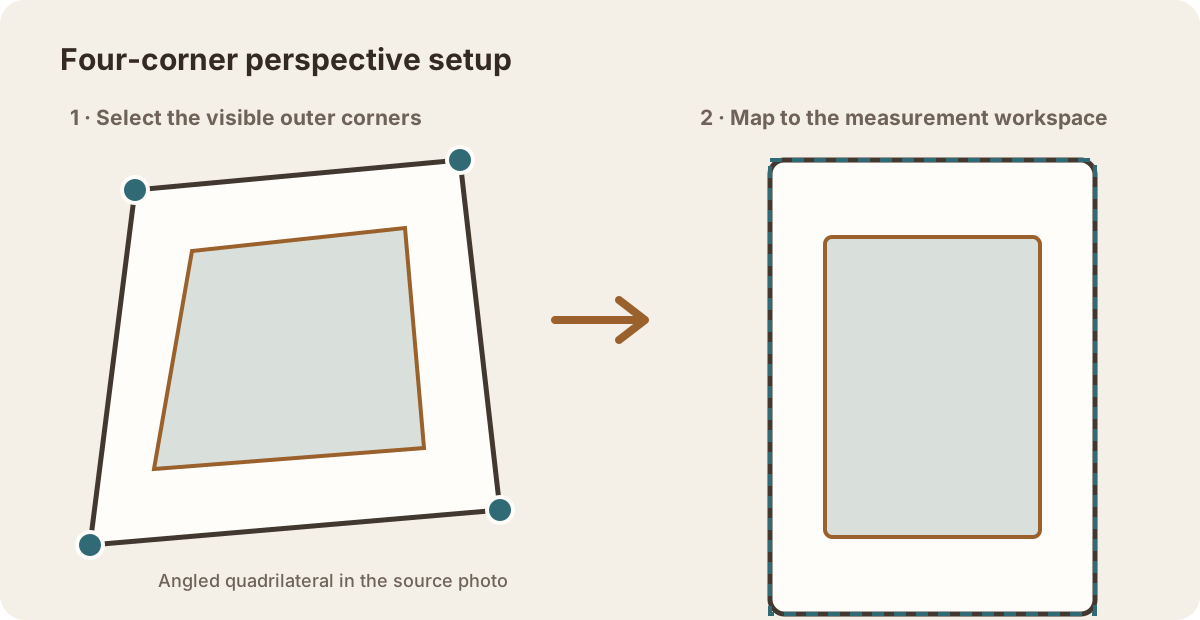
Crop only
Crop-only mode takes the selected axis-aligned rectangle and copies those pixels into a new canvas. It removes surrounding background but does not warp a trapezoidal card into a rectangle.
Perspective correction
The user places four corners on the visible outer corners. A projective homography maps that quadrilateral into a rectangular workspace using the standard 63:88 card aspect ratio. The output is bilinearly sampled and constrained to a practical working resolution.
Perspective correction can reduce keystone distortion. It cannot restore cropped corners, focus an out-of-focus edge, remove glare, reveal a hidden border, fix lens distortion perfectly, or prove that the selected corners were accurate.
Manual review remains required after correction. Recheck every outer edge and inner boundary in the corrected workspace; a small corner-placement error can shift the warp and the final border widths.
Worked example
A card photo through perspective correction
This example follows one angled card photo through cropping, four-corner setup, correction, manual guide review, and the final centering estimate.
How to read this example: it shows the workflow and result from this photo, not an accuracy study. There is no separately recorded pre-correction ratio, repeated-operator comparison, or grader outcome.
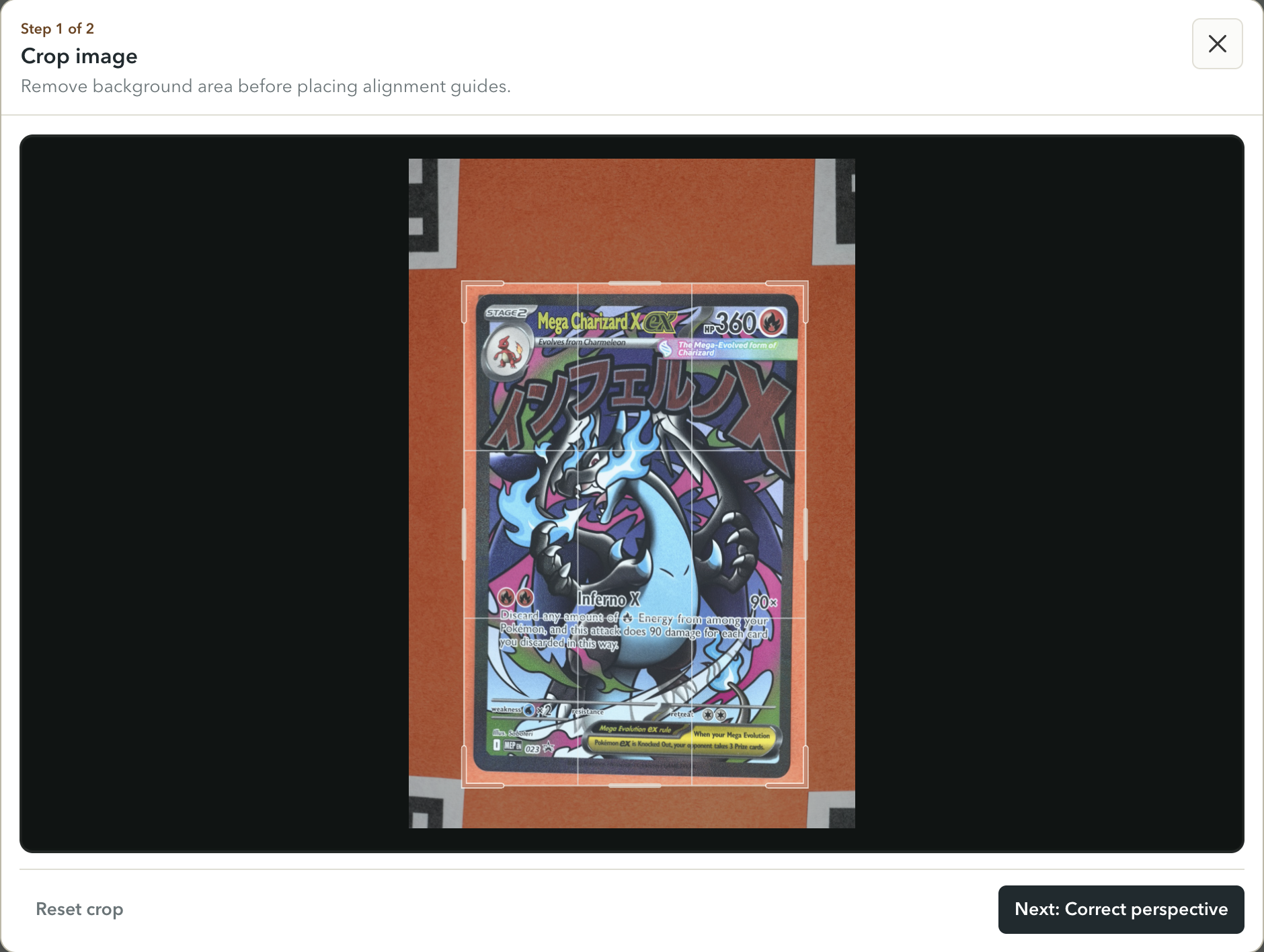
1. Original angled photo and crop
The imported photo shows all four physical corners against a contrasting orange mat. The card is slightly rotated and its photographed edges do not form the same clean screen-aligned rectangle needed for guide comparison. The crop removes background but does not correct that geometry.
2. Four-corner setup
Each bracket's inner elbow is placed on a physical card corner rather than on the printed artwork. These four user-selected points define the projective transform; an inaccurate corner would carry its error into the corrected workspace.
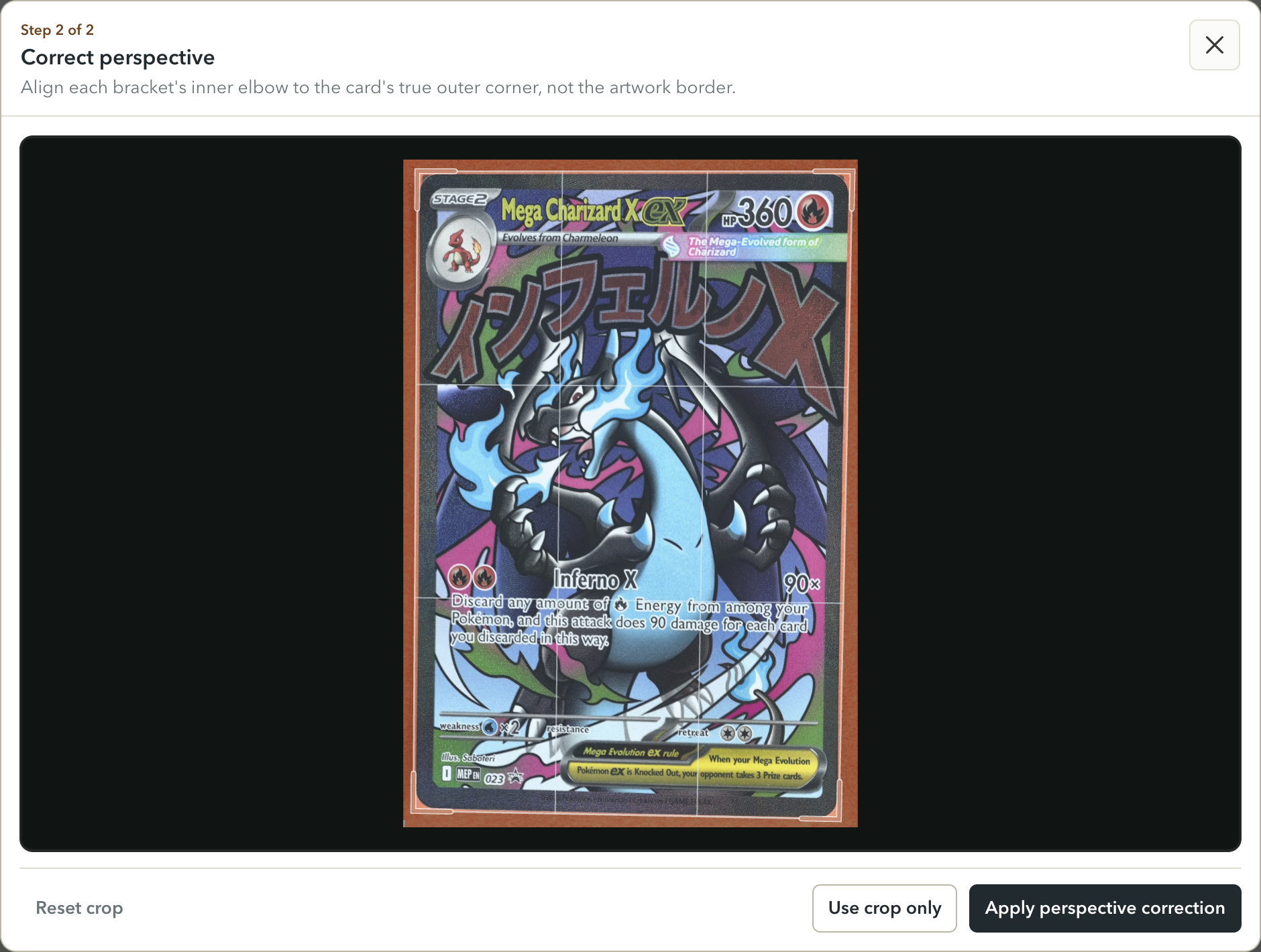
3. Corrected workspace and manual review
The transform maps the selected quadrilateral into the standard-aspect-ratio workspace. It does not locate the printed inner boundary, so the outer and inner guides still require manual review. The corrected image also retains source texture, focus limits, print irregularity, and any corner-selection error.
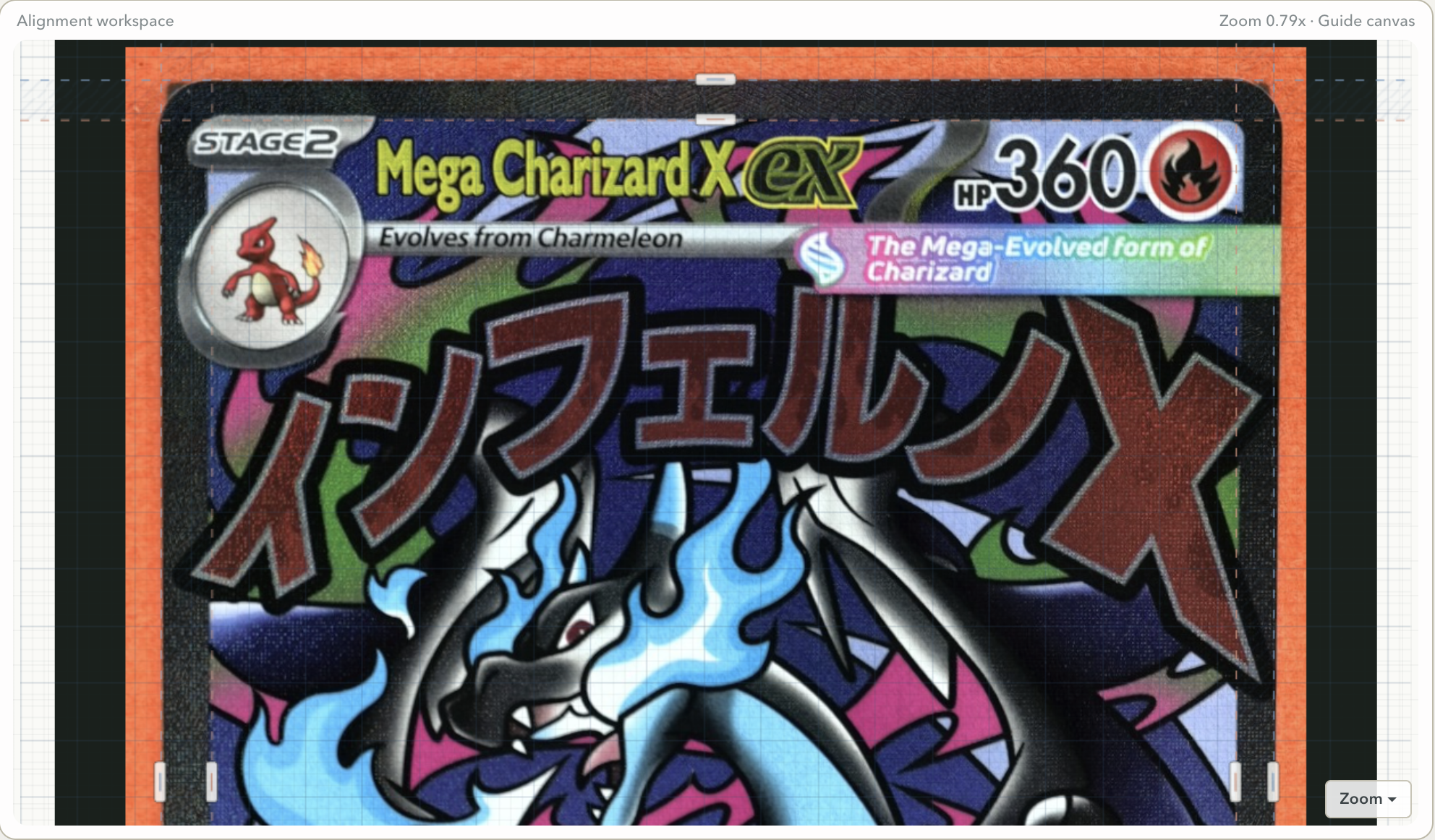
4. Recorded centering result
The saved result is 51.9 / 48.1 left-to-right and 47.0 / 53.0 top-to-bottom. The original angled view mixed camera geometry with border balance; no numeric by-eye ratio was logged. The defensible comparison is therefore qualitative: the corrected pass showed near-even horizontal borders and a larger bottom share, not a measured before/after improvement.
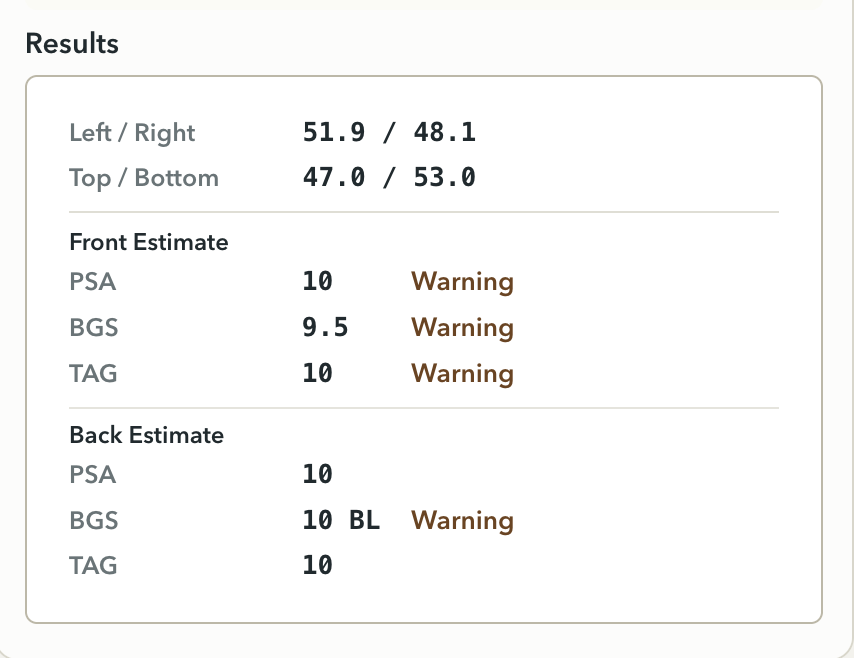
This photo has visible corners, useful contrast, and no obvious sleeve obstruction or severe glare over the measured edges. It does not demonstrate how the method performs on cropped corners, heavy glare, blur, a holder, or an unclear printed boundary; those remain reasons to reject a source photo rather than extrapolate from this example.
Alignment aids
What Border Assist, Low-Res, the loupe, and fine controls do
These controls are deliberately visual or manual. None is an autonomous centering decision.
Border Assist
Border Assist shows a grayscale, higher-contrast, slightly brighter rendering (contrast 1.52; brightness 1.08). It can separate broad tonal edges, but does not alter guide positions or the calculation.
Low-Res view
Low-Res downsamples the image into blocks of roughly 10 screen pixels and redraws without smoothing. It can make broad border transitions easier to see while intentionally discarding fine texture. Suggested Edge Assist is unavailable in this view.
Loupe
While a guide or sample is dragged, the loupe magnifies a strip along that guide's axis using the current view and exposure settings. It helps place the line; it does not lock the result.
Suggested Edge Assist
At 1.25× zoom or higher, the helper searches a limited neighborhood for a strong color-gradient boundary. Inner-guide suggestions sample more than one cross-axis position. The drag can slow near a strong candidate and snap only after a short dwell. Keep moving whenever the suggestion does not match the visible edge.
Fine rotation
The rotation controls adjust in 0.1° steps. Use them for small camera-roll errors. They do not replace four-corner correction when opposite sides converge or diverge.
Uneven Inner Tilt
The advanced control tilts individual inner guides for a genuinely uneven printed boundary and enables three-point sampling. Do not use it to disguise whole-photo perspective or to chase an artwork feature that is not a stable border.
Uncertainty
Why the output remains an estimate
The arithmetic is deterministic; the evidence supplied to it is not.
Common variation sources
- one-pixel or sub-pixel differences in guide placement
- blur, compression ringing, oversharpening, glare, or shadows
- sleeve, holder, scanner, or background edges mistaken for card edges
- corner selection errors during perspective correction
- irregular borders, print registration, artwork asymmetry, or damaged edges
- different operators choosing different visual boundaries
Reject the photo and retake it when
- any physical card edge or corner is cropped out
- glare, blur, or shadow covers the border being measured
- the card occupies too few pixels to separate adjacent boundaries
- a sleeve or holder cannot be distinguished from the card
- the background merges with the outer edge
- the design has no repeatable inner boundary for the chosen axis
Repeatability is more informative than a single precise-looking decimal. If two careful passes or two good photos produce meaningfully different guide placements, record the uncertainty and do not choose only the more favorable result.
Current external references
How centering-only grade references are applied
The app compares the less favorable axis with centering bands recorded from selected grading-company references. These labels are convenience references, not grades, predictions, or endorsements. Check the current official standards before a submission decision.
Measure the front and back from their own photos and select the matching Card Side reference in the tool. Do not combine both faces into one ratio: the visible boundaries may differ, and a grading company's published front and back tolerances may differ too.
Selection rule
The larger side of each axis is compared with the selected company's front or back limit. If horizontal and vertical land in different buckets, the lower centering-only result is shown. A caution marker appears near a boundary. Other condition factors are not considered.
Sources reviewed August 25, 2026; Beckett status rechecked September 16, 2026
Standards can change. Beckett's grading pages showed a temporary service-status page rather than the former grading scale when rechecked September 16, 2026. Treat the tool's BGS centering reference as historical until current official standards are available. TAG publishes different back thresholds for sports cards and TCGs; CGC wording differs by card category. Open the official source before using a threshold for a submission decision.
Verification record
What was checked for this methodology
This page was reviewed against the project's guide-geometry, perspective-transform, perspective-crop, workspace-interaction, and centering-grade modules. The two diagrams were created specifically for this methodology from the implemented coordinate model and contain no uploaded card or marketplace image.
No accuracy percentage, grader agreement rate, or validation experiment is claimed. The perspective example on this page records one workflow and its displayed result; it is not generalized beyond that example.
Apply the method
Measure, then challenge the evidence
Place the guides, repeat the pass, and reject the source photo if its edges cannot support the measurement.